01
Chats
Direct the agent you choose.
Keep separate conversations, send context and review file changes. Choose model, effort and mode where your agent supports them.
Your desk can wait.
Direct Claude Code, GitHub Copilot and Codex on your computer. Send text, voice notes or screenshots. Review changes, open your files and terminal, and see your screen in Hooky.
Mobile access for iOS and Android. Requires a connected computer and access to your chosen agent.
Desktop extension
Available for VS CodeMobile app
iOS + Android · request early access
Live screen and computer actions
Windows + macOS hosts
Explore the app
Send an instruction, inspect the result and decide what comes next. Explore current app screens with sample content below.
01 / 03
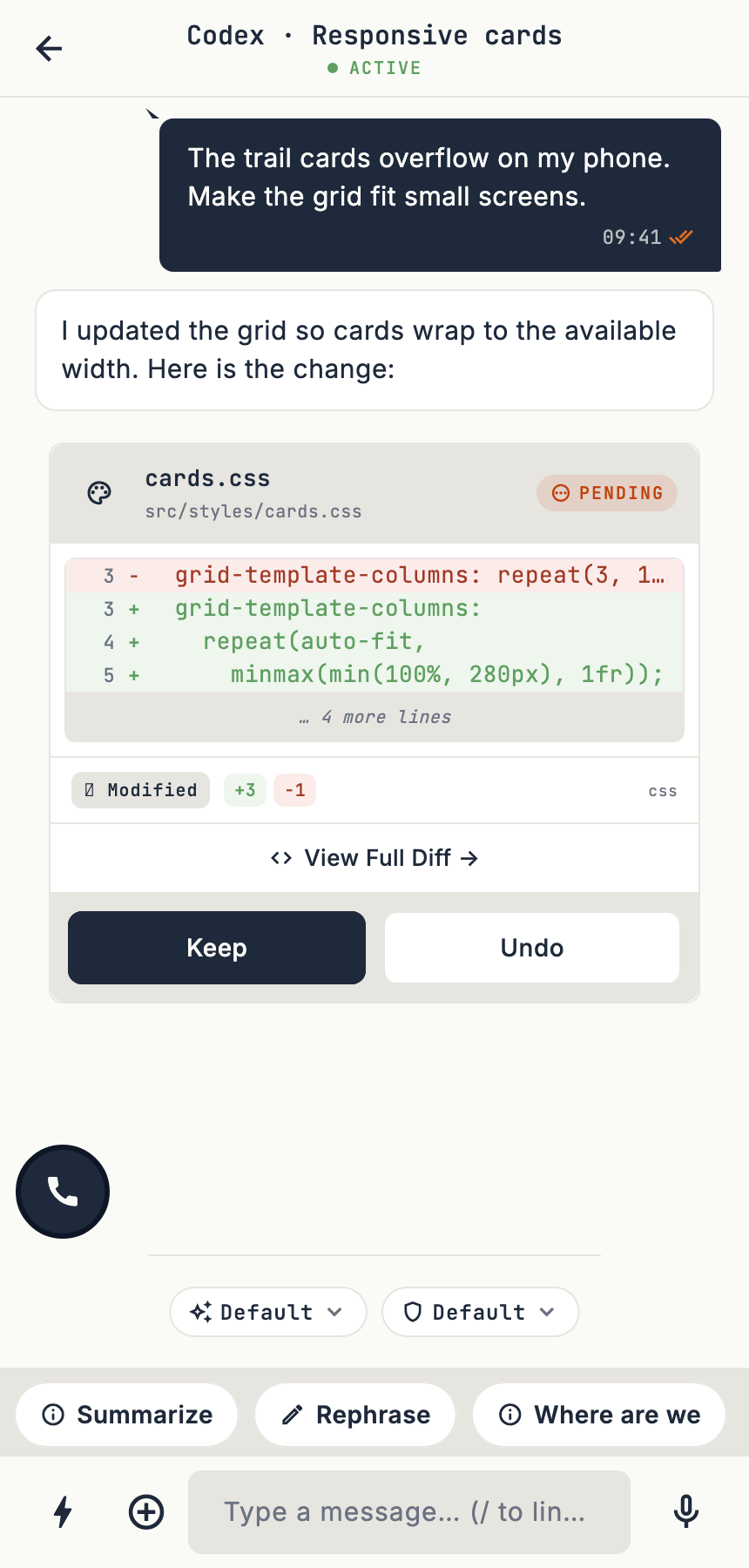
Choose an agent, describe the task and attach the files or screenshot it needs. Keep the conversation with its workspace.
Text, voice notes and attachments in one conversation.
Request early access02 / 03
Read the changed file, open the diff, and keep or undo supported edits. Execution permissions depend on the agent and mode you choose.
Reviewing a change is separate from approving a command.
Request early access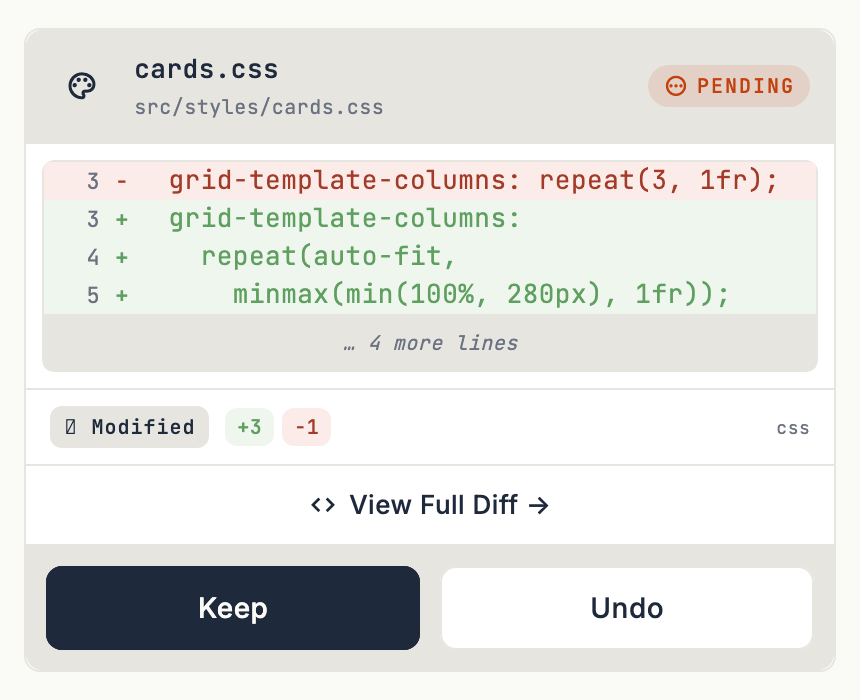
03 / 03
Open your terminal to inspect output or run a command. Files and Stream give you other ways to check the workspace without going back to your desk.
Actual app components with sample content. No live agent execution is shown.
Request early access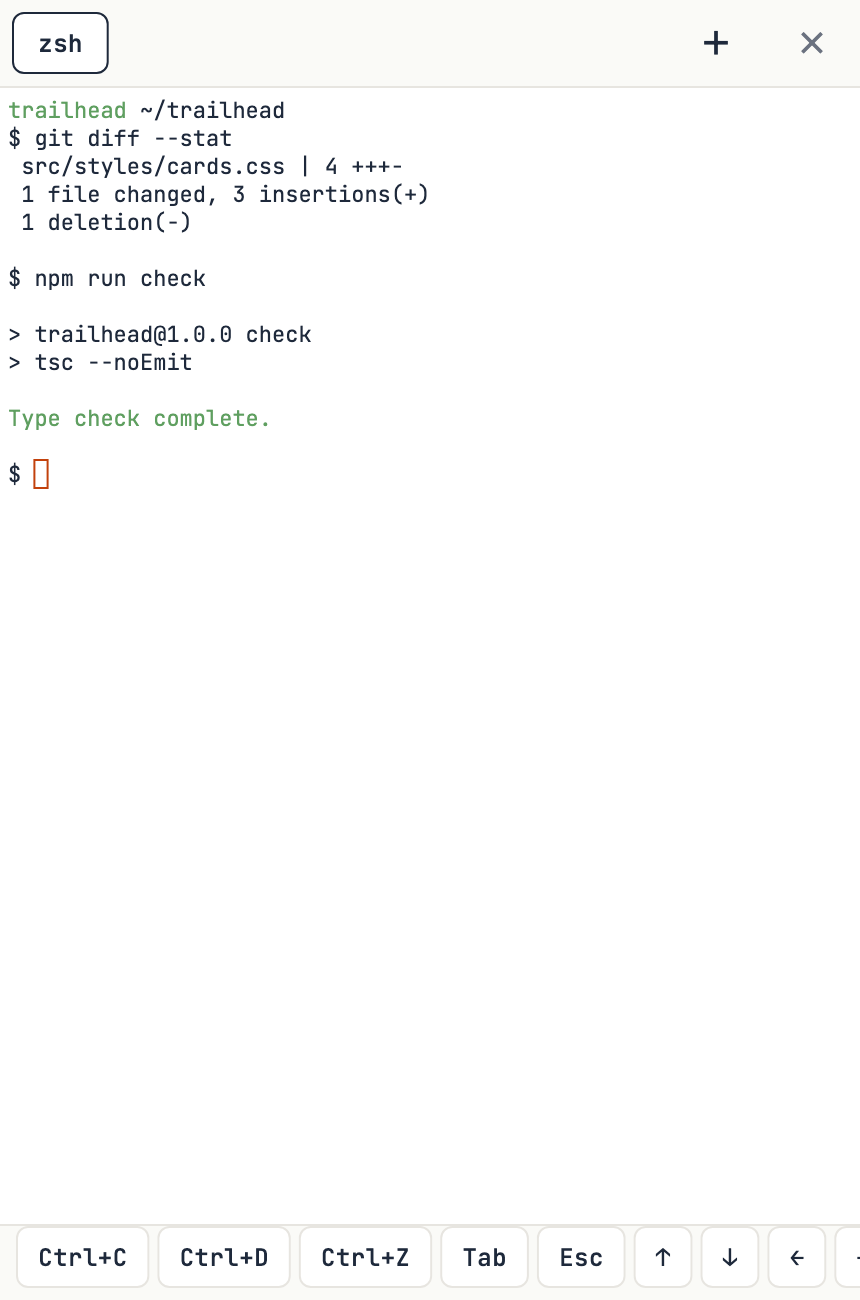
Four tabs. Your working context.
Direct the agent you choose.
Keep separate conversations, send context and review file changes. Choose model, effort and mode where your agent supports them.
A real terminal. Within reach.
Type commands, follow build output and work with interactive prompts. Create and switch terminal sessions from your phone.
Open the whole workspace.
Use the browser VS Code workbench to explore and edit your files. Your computer stays the workspace host.
See what is happening.
Watch your computer screen and zoom in on the detail. Ask your agent to click, type or navigate supported desktop apps.
Pair multiple workspaces and switch between them. Each connection keeps its own conversations and context.
Share images, files, links and text into a chat from other apps. Receive output files on your phone. Up to 25 MB per attachment.
Choose a workspace Claude skill from the chat picker or use its slash command. Get notifications and catch up when you reconnect.
When typing can wait
Screen streaming and agent-driven computer actions work on supported Windows and macOS hosts. On macOS, screen recording and accessibility permissions are required for those actions.
Tap the mic, speak, then edit the transcription before sending. Voice transcription uses the remote service.
Talk with your agent and hear spoken replies while you follow the chat or screen. This requires Remote mode and enabled Pro access. Public plan purchases are not open yet.
Access, plainly
You use your own coding-agent account. Hooky does not include a Claude, Copilot or Codex subscription.
Free core
Pair your workspace, chat with your agents, use the terminal, read files and receive notifications. Hosted voice, prompt polishing and file transfers have usage allowances.
Advanced access
Plus and Pro add advanced capabilities such as supported TV casting; live agent conversations require Pro. Access depends on your account and build.
Public paid plans are not available to purchase yet. Prices and included allowances will be shown when purchases open.
Your computer does the work
Connect your phone straight to the extension on your local network. Local connections do not use the remote relay and are not encrypted by default. Use a trusted network.
Connect through Hooky’s relay over TLS/WSS. Remote messages are processed by the service and may be stored for delivery and history. This is not end-to-end encryption.
Choose Remote mode before leaving your local network; a Direct session does not automatically switch to the relay. Voice features use hosted speech services. The Files workbench can use a separate remote tunnel.
Read how data is handledGetting started
Add Hooky to VS Code, reload the window and open “Hooky: Show QR Code” from the Command Palette.
Request mobile access. In Hooky, sign in with GitHub, Google or email, then scan the QR code or enter the pairing code.
Start a Claude Code, Copilot or Codex chat. Complete the agent’s setup and sign-in prompts, then send your first instruction.
Agent setup and action permissions vary. Some Codex approvals currently require the computer. The Files workbench may need extra time to prepare on first use.
Plain answers
What you need, what stays on your computer, and what you can do from your phone.
Hooky for VS Code is listed on the Visual Studio Marketplace. The iOS and Android apps are in development and early access; request access below for availability updates. There are no public mobile store links on this site yet.
Keep your computer awake and connected, with VS Code, the Hooky extension and your workspace open. Your chosen coding agent needs its own installed setup and authentication. The Files workbench is prepared on first use. Live screen and computer actions require a supported Windows or macOS host and the relevant permissions.
Hooky supports Claude Code, GitHub Copilot and Codex. Sign in to Hooky using GitHub, Google or email and password. Your Hooky account is separate from your agent account: bring your own access to each coding agent. Models, controls and permissions vary by agent.
You can inspect diffs and keep or undo supported file changes. That is different from approving a command before it runs. Permission handling depends on your agent and mode; some modes allow actions without asking. Codex approval requests currently need to be handled on the connected computer.
Yes, use Remote mode through the Hooky relay when your devices are on different networks. Direct mode connects over a trusted local network. A session reconnects in its selected mode; it does not automatically switch between Direct and Remote. The Files workbench selects its own local or tunnel connection.
Remote relay traffic uses TLS/WSS, and the service processes messages and stores delivery history. Account and saved chat data also use backend storage. Direct workspace traffic uses the local network; local transport is not universally encrypted. Transcription, spoken replies, optional prompt polishing, workbench tunnels and your selected agent may involve external providers. The Privacy Policy explains these paths.
The VS Code extension is free to install, and Hooky has free core chat, file and terminal functionality. Advanced features may depend on access, limits and plan availability. Paid plans are not currently available to purchase here. Any future price and allowance will be shown before purchase. Your coding-agent subscriptions or API usage are separate.
Voice notes turn a recording into text you can edit before sending. Live conversations add continuous speech input and spoken agent replies. Live conversations are a Pro preview requiring Remote mode, enabled speech services and eligible account access; they are not an included unlimited calling offer.
Open Hooky, connect a workspace and choose Hooky in your phone's share sheet to send supported files, screenshots or links. You can also download output files to your phone. Enable notifications for task updates; delivery and reply actions depend on your device, operating system and connection. Reopening the app can catch up on stored messages.
Hooky, in your pocket.
Request access to Hooky for iOS or Android. We’ll email you with availability and how to get started.